Overview
Business Development tracks a pursuit until it's ready to price. At that point the work belongs in Aspire: your team creates the property and the opportunity, and estimators build the bid there.
Moving a deal to In Aspire Pipeline marks that handoff. Linking the Aspire opportunity connects the two, so the deal's value follows the real estimate, the opportunity shows up in your pipeline report, and anyone can see where the work came from.
What You'll Need
- A deal that is ready for bidding, with its company and property in Aspire
- The opportunity created in Aspire, or a plan to create it right after the handoff
- Capsa's read access to your Aspire account turned on by your Aspire administrator, so Capsa can confirm the opportunity
Start the Handoff
There are three ways to hand a deal off, and they all lead to the same confirmation:
- Open the deal and select Move to Aspire pipeline…
- Choose Move on the deal card, then In Aspire Pipeline
- Drag the card onto the In Aspire Pipeline lane
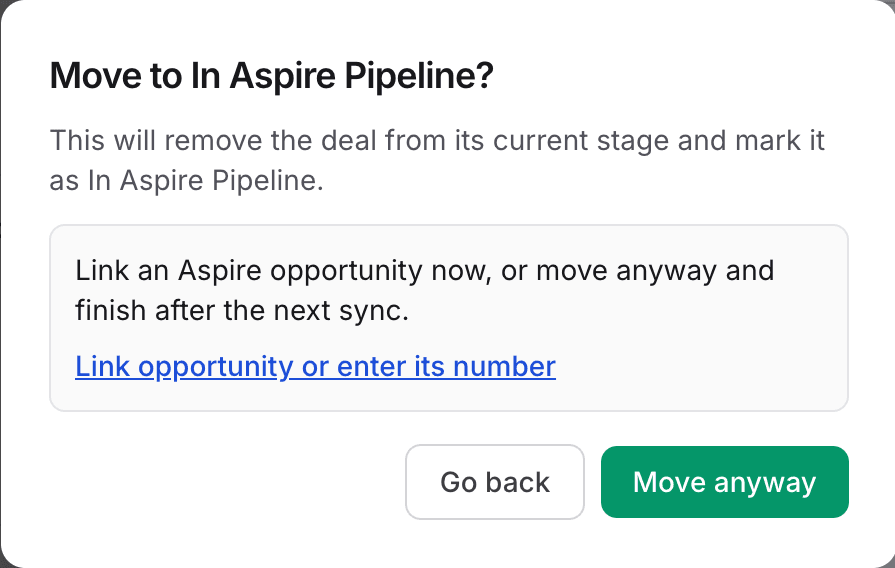
Capsa asks you to confirm. If the deal's company, contacts, or properties aren't in Aspire yet, you'll see Not everything is in Aspire yet with a list of what's missing and a way to add or link each one.
Link now
If the opportunity already exists in Aspire, choose Link opportunity or enter its number and follow Step 2. This is the cleanest handoff.
Move anyway
If the opportunity isn't built yet, choose Move anyway and link it later. The deal waits in In Aspire Pipeline, and the pipeline report lists it under Needs attention until it's linked.
Link the Aspire Opportunity
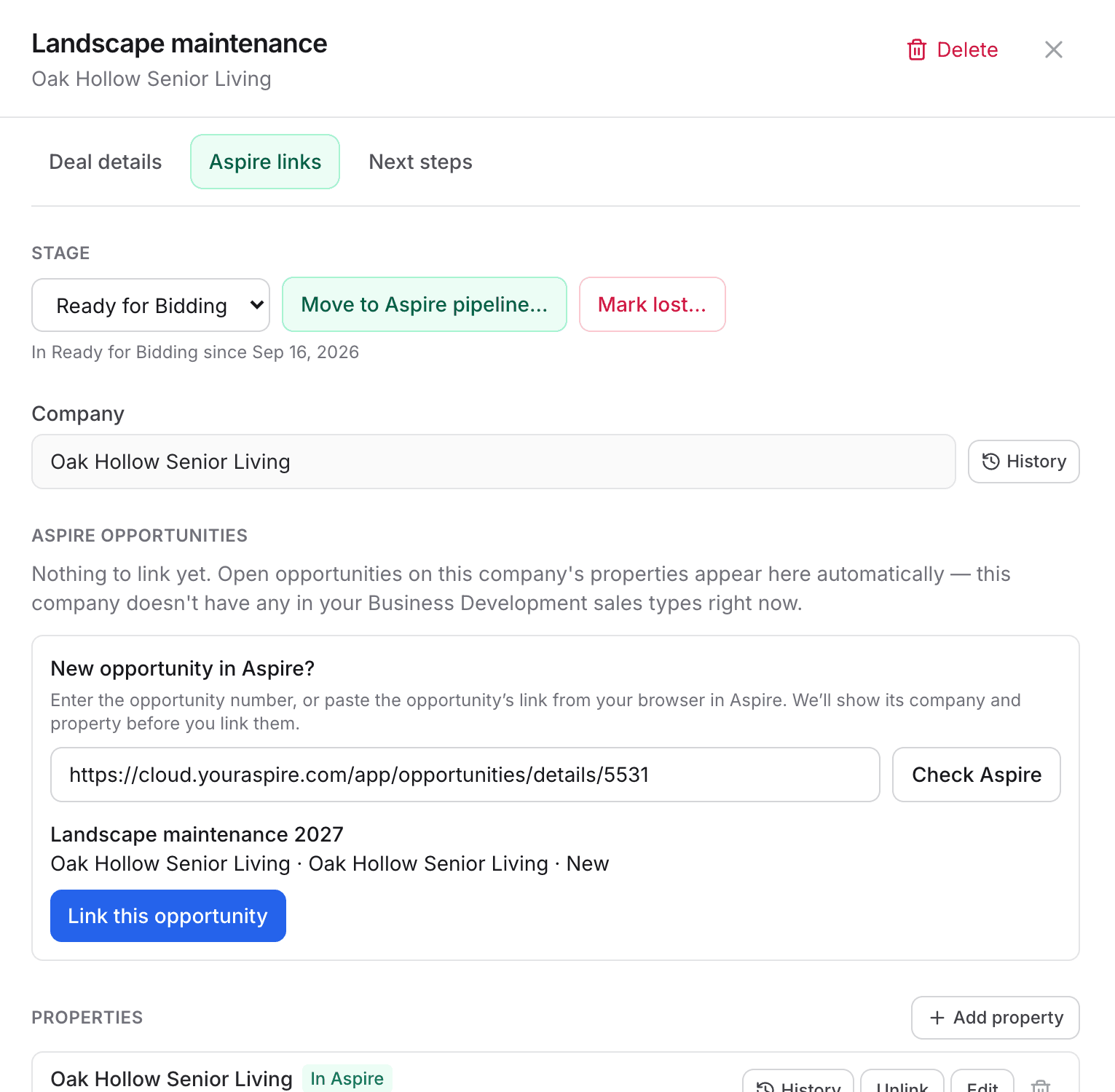
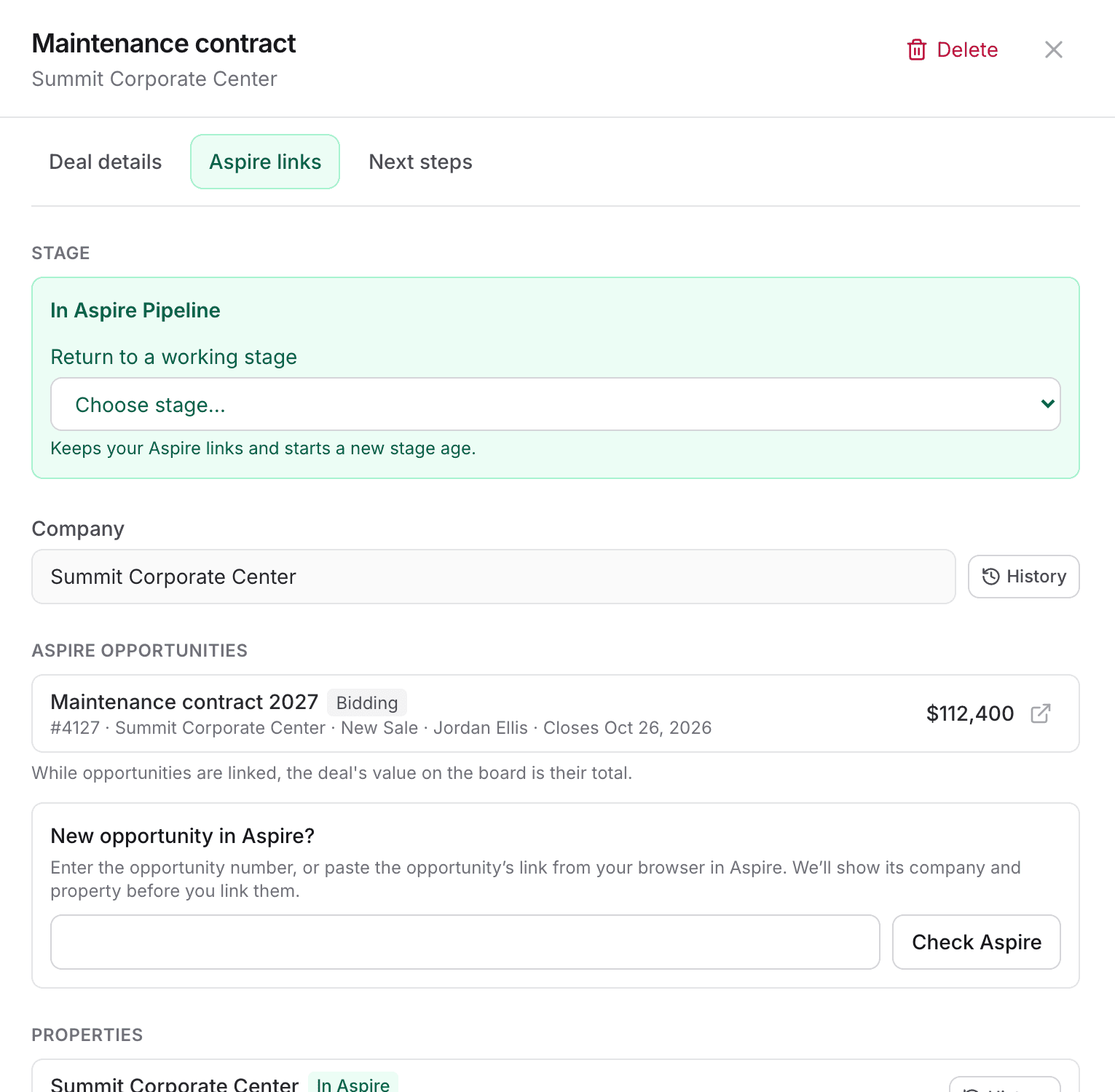
Open the deal's Aspire links. Capsa suggests open opportunities on the company's properties—select Link on the right one. For a new opportunity, go to New opportunity in Aspire? and either type the opportunity number or paste the opportunity's address from your browser while it's open in Aspire.
Select Check Aspire. Capsa looks the opportunity up in your Aspire account and shows its name, company, property, and status so you can confirm it's the right one before you select Link this opportunity.
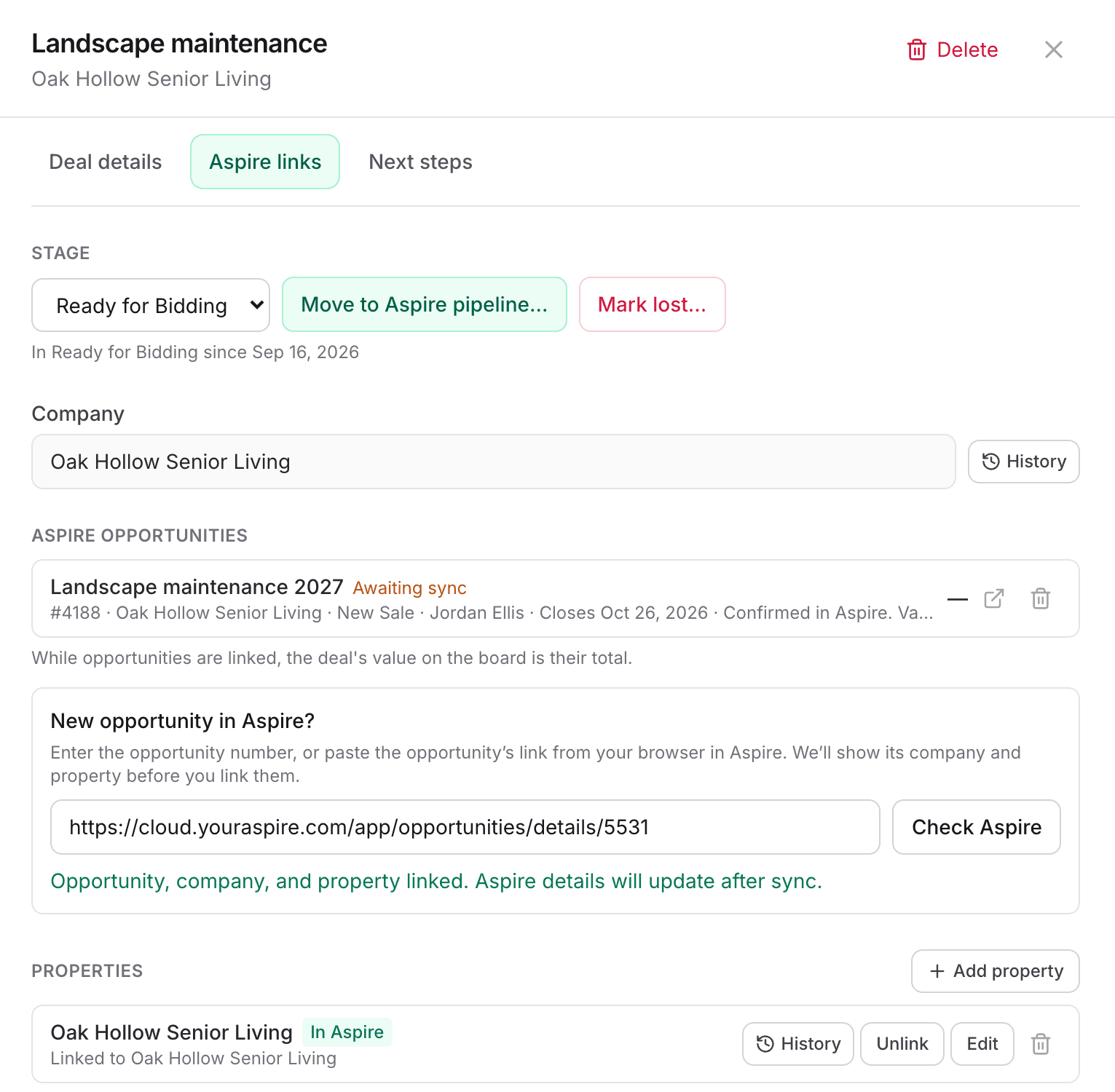
What Capsa checks before linking
- The opportunity must be on a property that belongs to the deal's company. If the deal has no company yet, linking also attaches the opportunity's company and property.
- Closed opportunities can't be linked. A won or lost opportunity means the pursuit has already ended.
- An opportunity can be linked to only one deal.
Link Records Created in Aspire Today
Handoffs often happen fast: the estimator creates the property in Aspire this morning and wants it on the deal now. Capsa's lists refresh overnight, so a record created today won't appear in the regular search yet. You don't have to wait:
Search Aspire now
In any company, contact, or property search, choose Created it in Aspire today? Search Aspire now to look the record up in Aspire directly. For a property, you can also paste its address from your browser.
It links today, fills in tonight
The record links right away and shows Just added. Its full details, and the opportunity's value in your reports, arrive with the overnight sync.
Follow the Deal Through Aspire
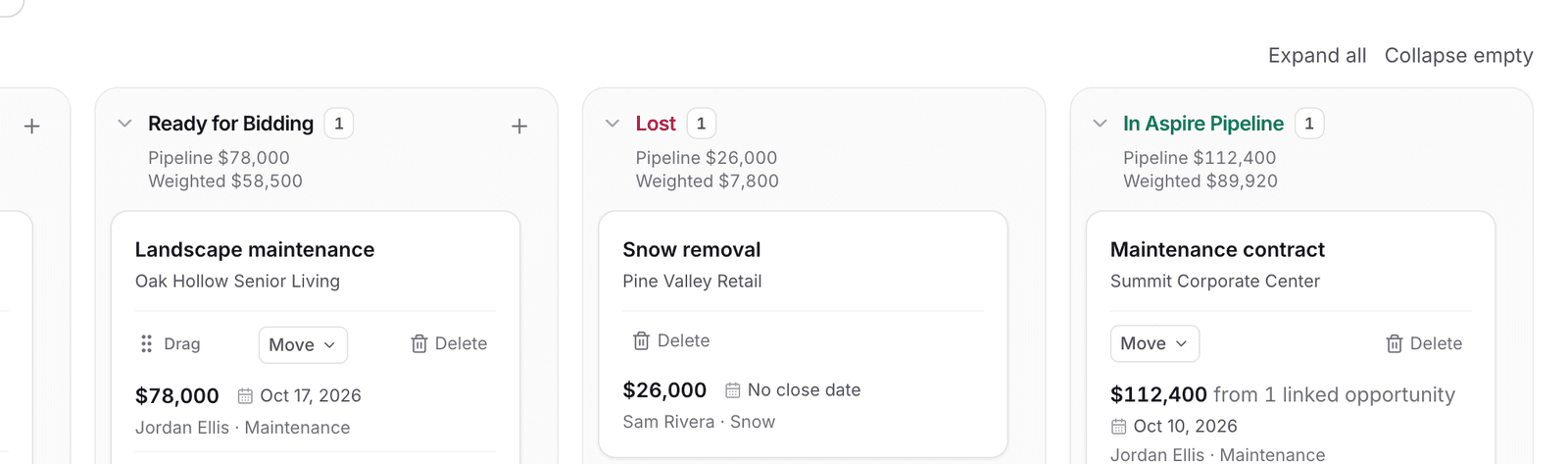
Handed-off deals sit in the In Aspire Pipeline lane. While opportunities are linked, the deal's value is their total—so the card updates as estimators price the work. Open the deal to see each linked opportunity's Aspire status and value, with a shortcut to open it in Aspire.
Live status from Aspire
Each linked opportunity shows its Aspire status, such as New, Bidding, Approved, or Delivered, and its estimated value as of the last sync.
Moved it too soon?
Choose a stage under Return to a working stage. The deal keeps its Aspire links and starts a fresh stage age. Deals marked lost stay closed.
Best Practices
- Hand off with the opportunity linked. A linked deal carries the real estimate into your reports; an unlinked one keeps your rough amount.
- Don't wait for the overnight sync. Use Search Aspire now for anything created today so the handoff finishes while it's fresh.
- Clear Needs attention weekly. Deals moved without a link are easy to forget. The pipeline report lists them for you.
- Link every opportunity the pursuit created. If one pursuit turns into a maintenance contract and an enhancement, link both so the deal reflects the whole win.
Recommended Operating Rhythm
At handoff
The deal owner moves the deal and links the opportunity the same day the estimator creates it.
Weekly
The sales leader clears Needs attention in the pipeline report and follows bidding opportunities to a decision.
Monthly
Review which pursuits reached Aspire and what they became, to see which owners, divisions, and sales types turn pursuits into real work.