Overview
Penetration metrics in Capsa Intelligence measure how much additional revenue you're capturing from your maintenance customers. By customizing your penetration definitions, you can:
- •Define which contracts count as "base revenue" (the denominator)
- •Create penetration groups by service type (e.g., Irrigation, Enhancement, Snow)
- •Get AI-powered recommended actions identifying high-value upsell opportunities
This guide walks you through configuring these settings and understanding the insights they unlock.
What You'll Need
- •Access to Capsa Intelligence with penetration dashboards
- •Knowledge of your service divisions (e.g., Maintenance, Irrigation, Enhancement)
- •Understanding of which contract types represent your "core" recurring business
Access Metric Definitions
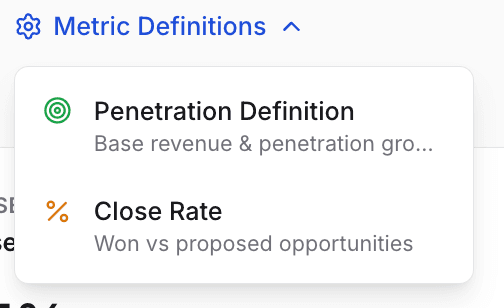
Navigate to Property Penetrations and look for the Metric Definitions dropdown:
- Click the Metric Definitions button (gear icon)
- Select Penetration Definition from the dropdown menu
Configure Base Revenue (Denominator)
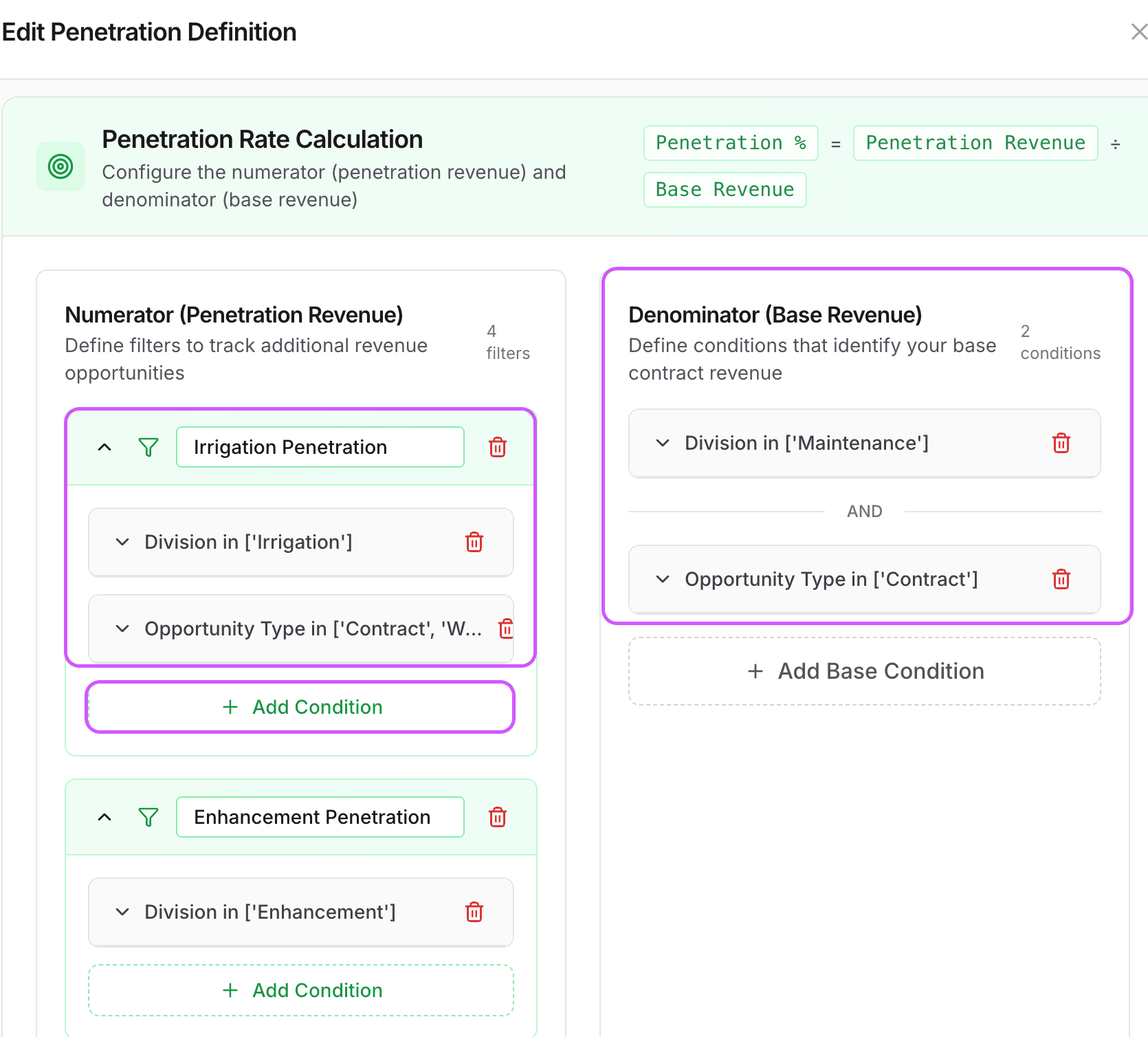
The Denominator (Base Revenue) section defines which contracts count as your "base" for calculating penetration percentage. This is typically your maintenance or core recurring revenue.
Common Base Revenue Filters
- Division: Maintenance, Landscape Maintenance
- Opportunity Type: Contract (excludes one-time work)
How It Works
Multiple conditions within the base revenue section are combined with AND logic. For example, "Division = Maintenance" AND "Opportunity Type = Contract" will only include maintenance contracts.
Create Penetration Groups (Numerator)
The Numerator (Penetration Revenue) section lets you create groups for different upsell categories. Each group tracks a specific type of additional revenue you want to measure.
Example Penetration Groups
- Irrigation: Division = "Irrigation"
- Enhancement: Division = "Enhancement"
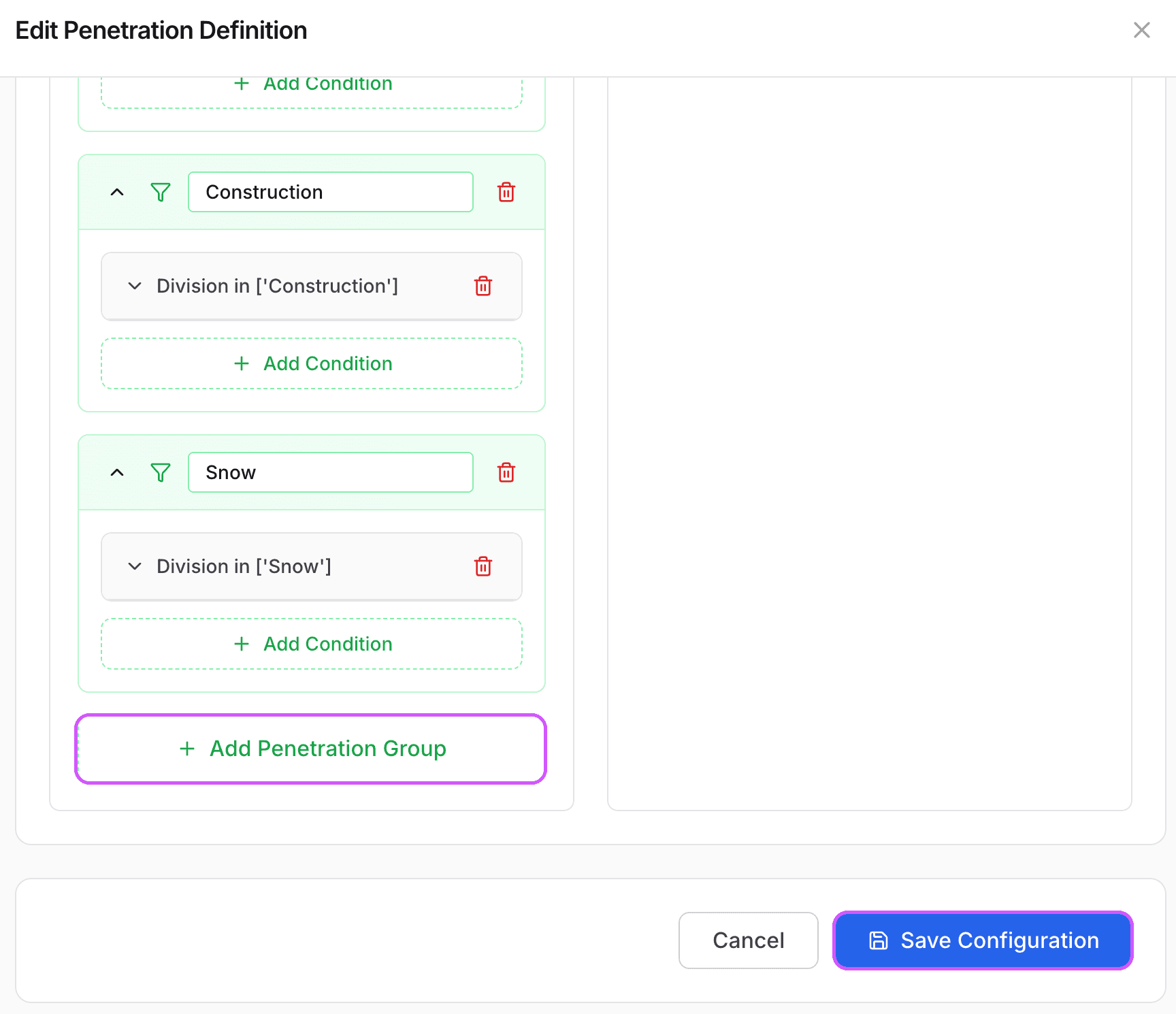
- Construction: Division = "Construction"
- Snow: Division = "Snow"
Click + Add Penetration Group to create a new group, then add filter conditions to define which revenue counts toward that group.
Tip: The penetration percentage for each group is calculated as: Group Revenue ÷ Base Revenue × 100
View Recommended Actions
Once your penetration definitions are configured, Capsa Intelligence automatically identifies properties with high upsell potential. Look for the colored indicators in your property tables:
Red Indicator - High Priority
Top 20% base revenue with low penetration in one or more categories
Yellow Indicator - Medium Priority
Top 50% base revenue with untapped potential
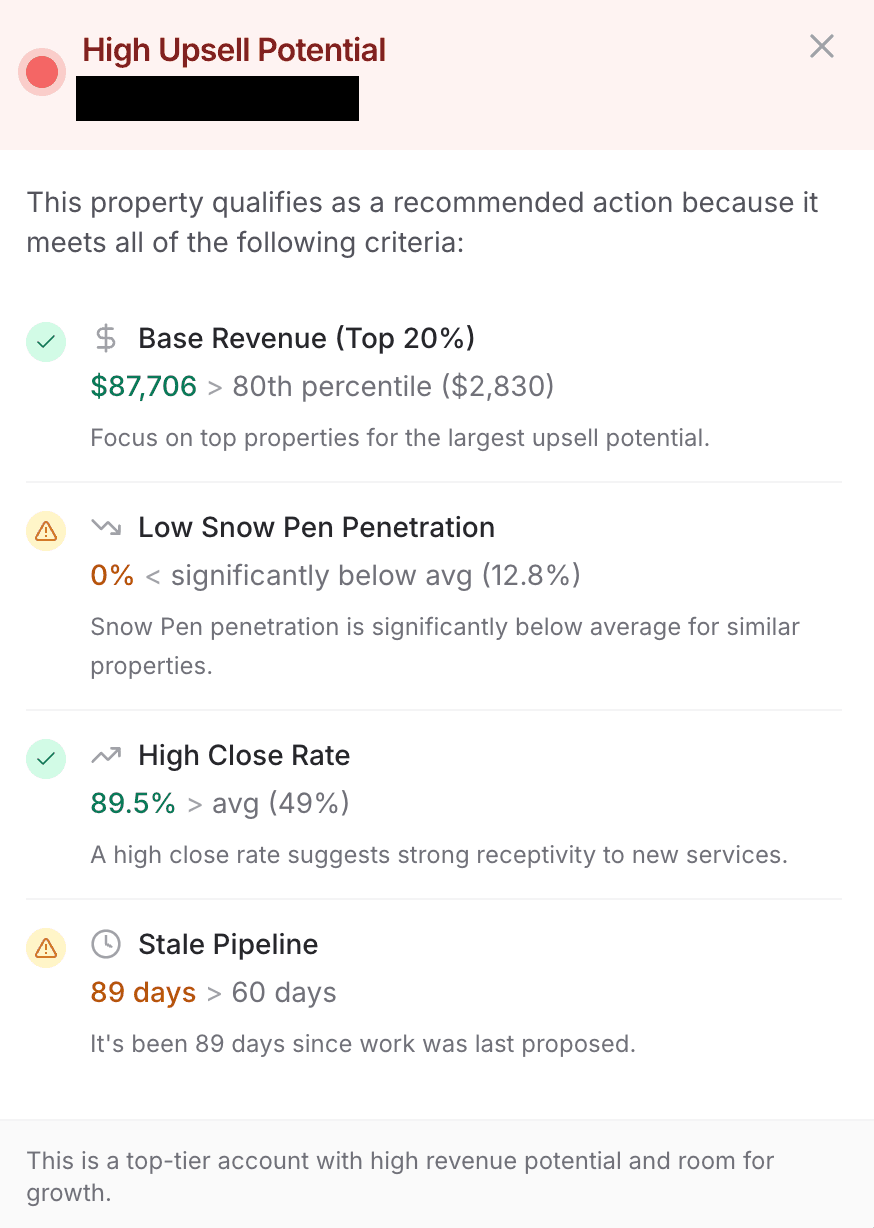
Click on a property with an indicator to see detailed criteria explaining why it qualifies as a recommended action:
How Recommended Actions Work
A property qualifies as a recommended action when it meets all of these criteria:
- 1High Base Revenue: Property is in the top 20% (red) or top 50% (yellow) by base revenue
- 2Low Penetration: At least one penetration group is significantly below average for similar properties
- 3High Close Rate: The property has historically been receptive to upsells (or has no proposals yet)
- 4Stale Pipeline: It's been more than 60 days since the last proposal
Next Steps
Now that you've configured your penetration definitions, return to Property Penetrations to see your settings in action: